
Docs menuAnalytics
Analytics
Read your Instagram analytics
Analytics is in the left sidebar and has five tabs: Overview, Plan, Posts, Audience and Media kit. Every number comes from Instagram for the connected account, analytics is on every plan, and only the Media kit tab needs Creator. This page walks through each tab and how often its numbers update.
7 steps4 min readUpdated
Feature page: Instagram analytics that tell you what to post next
On this page
- Before you start
- 1. Open Analytics and pick a range
- 2. Read the Overview
- 3. Check the Plan tab
- 4. Sort and filter the Posts tab
- 5. See who follows you on the Audience tab
- 6. Download the media kit (Creator)
- 7. Choose which analytics emails you get
- How often the numbers update
- Why a number might be missing
- Digests and milestone emails
- FAQ
- Related
Before you start
- An Instagram Business or Creator account connected to the workspace. Connect your Instagram account covers that.
- A few published posts. Most panels need at least one post with insights in the range, and the Next best move card needs three.
Step 1: Open Analytics and pick a range
Click Analytics in the left sidebar. The date button at the top right sets the range for every tab: Last 7 days, Last 14 days, Last 30 days (the default) or Last 90 days under Quick ranges, or any start and end date on the calendar.
Instagram keeps account insights for 90 days, so the Audience tab trims a longer range to the last 90 days and says so. Posts have no such limit.
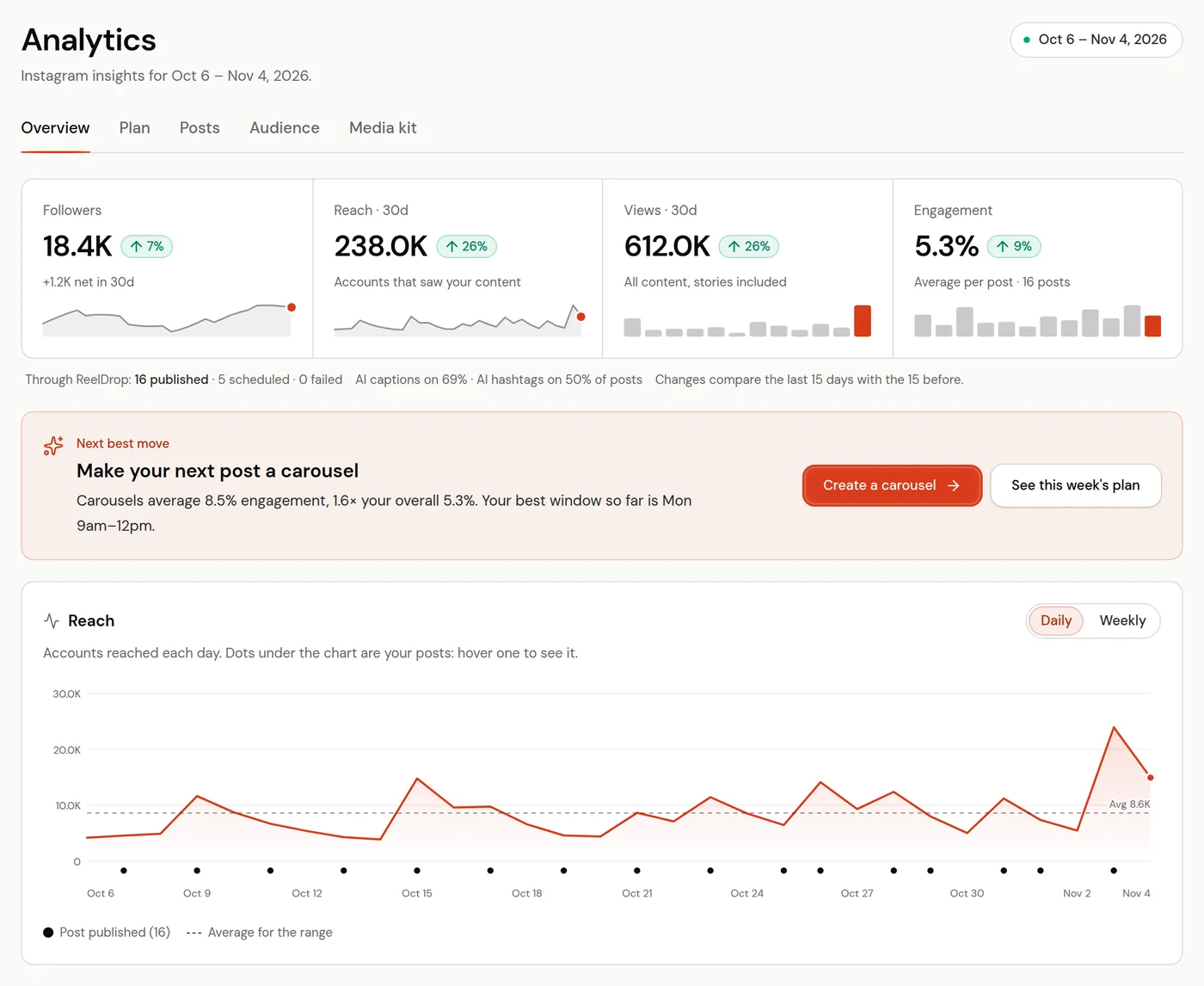
The Overview tab on a demo account. Step 2: Read the Overview
The four tiles at the top are Followers, Reach, Views and Engagement. The Followers pill is the net change over the whole range. The other three compare the most recent half of the range with the half before it, in whole days: on 30 days, the last 15 days against the 15 before, and on 7 days the last 3 against the 3 before. The line under the tiles says which.
Further down are Next best move, the Reach chart, Top posts and Top stories ranked by engagement, Top posts by bio link taps, When to post, Formats and Hashtags. Engagement is likes, comments, saves and shares divided by reach.
Step 3: Check the Plan tab
Plan holds This week's game plan, Last week vs plan, Keep the streak alive, Badges, and What's working, what's not, which gives each format a verdict: Double down, Maintain, Underused or Ease off.
The verdicts rebuild on their own every few hours. After a busy week, click Refresh in that panel to rebuild them now.
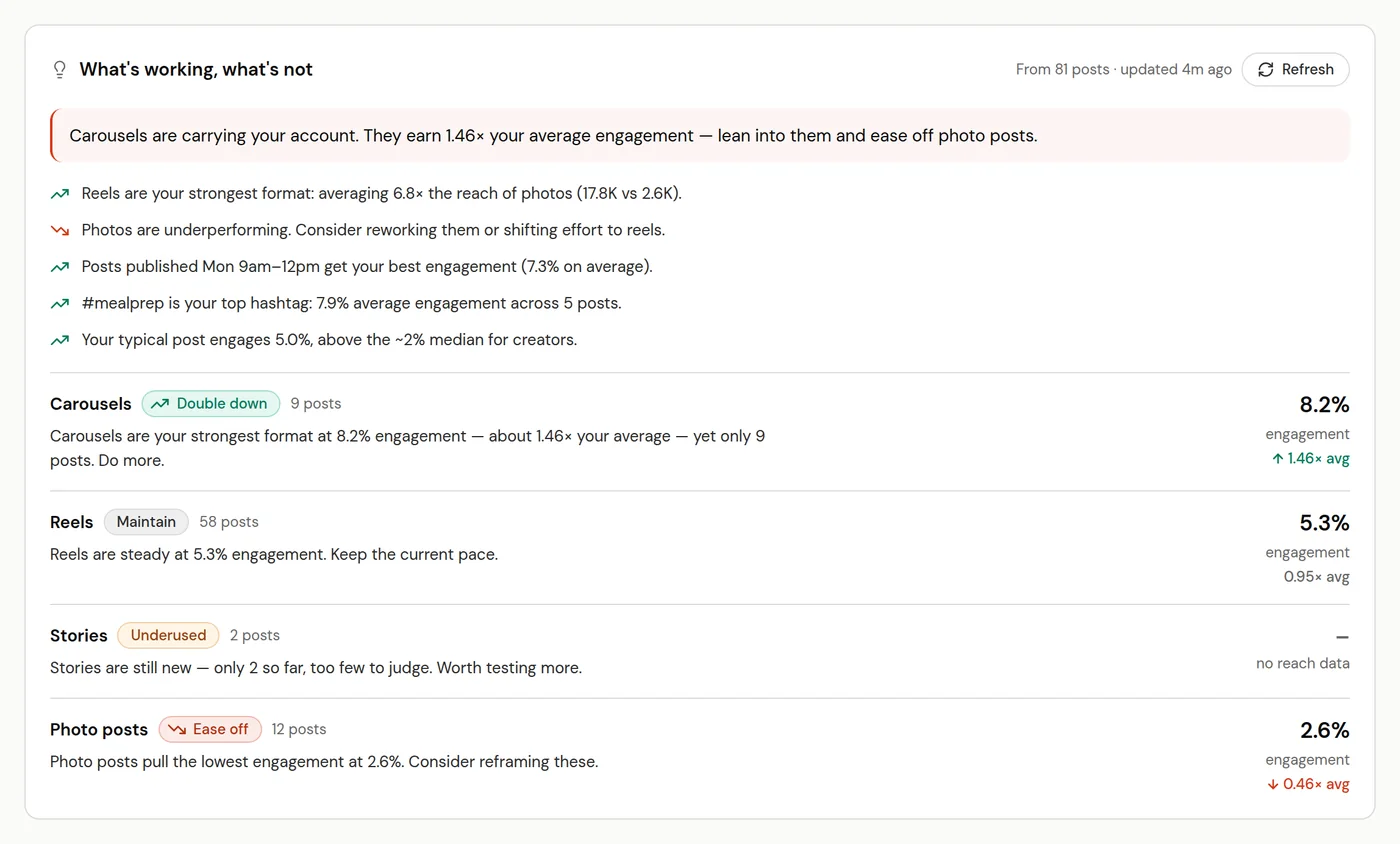
Refresh rebuilds the verdicts from your latest numbers. Step 4: Sort and filter the Posts tab
Choose All, Reels, Carousels, Photos or Trial reels, then Cards or List. In List, click a column header to sort by it.
A post with an IG badge was published from the Instagram app rather than through ReelDrop. Vs average is the post's views against the average for its format in the range, so 2.5× avg is two and a half times your usual. Watch time appears on reels only.
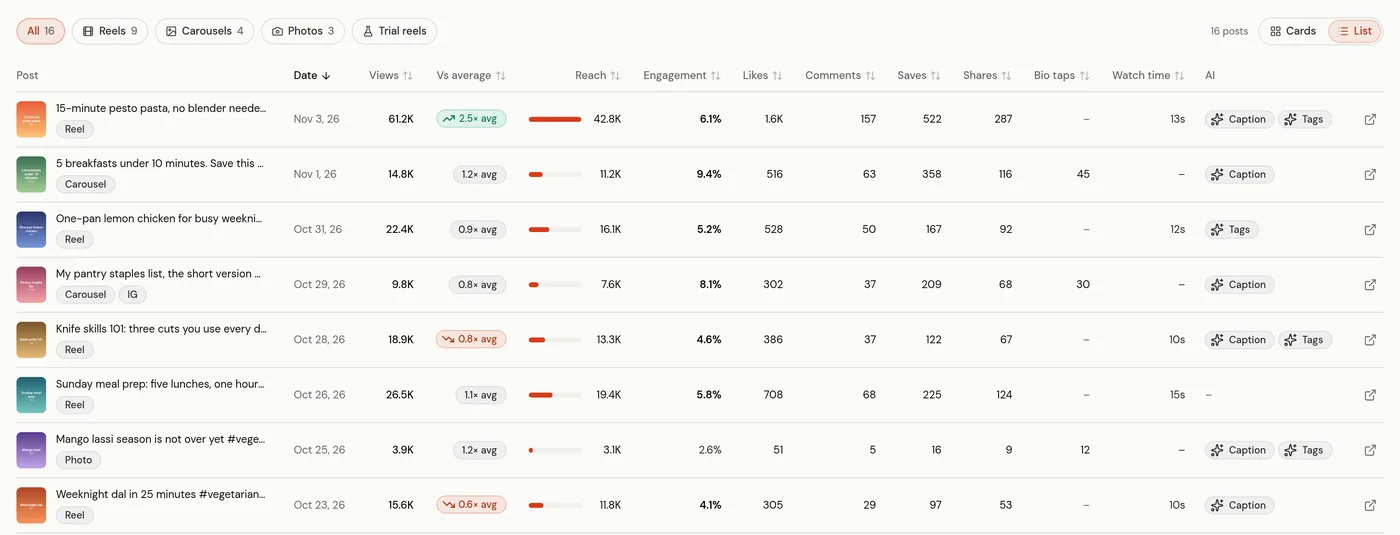
List view, newest first. Step 5: See who follows you on the Audience tab
Audience shows Followers, Recent vs previous, When your followers are online, Age and gender, Top cities, Top countries and Engaged audience.
Below 100 followers, Instagram withholds demographics, daily follower counts and online hours, and the tab says how many followers are left to go. On a newly connected account they can take a few days to appear.
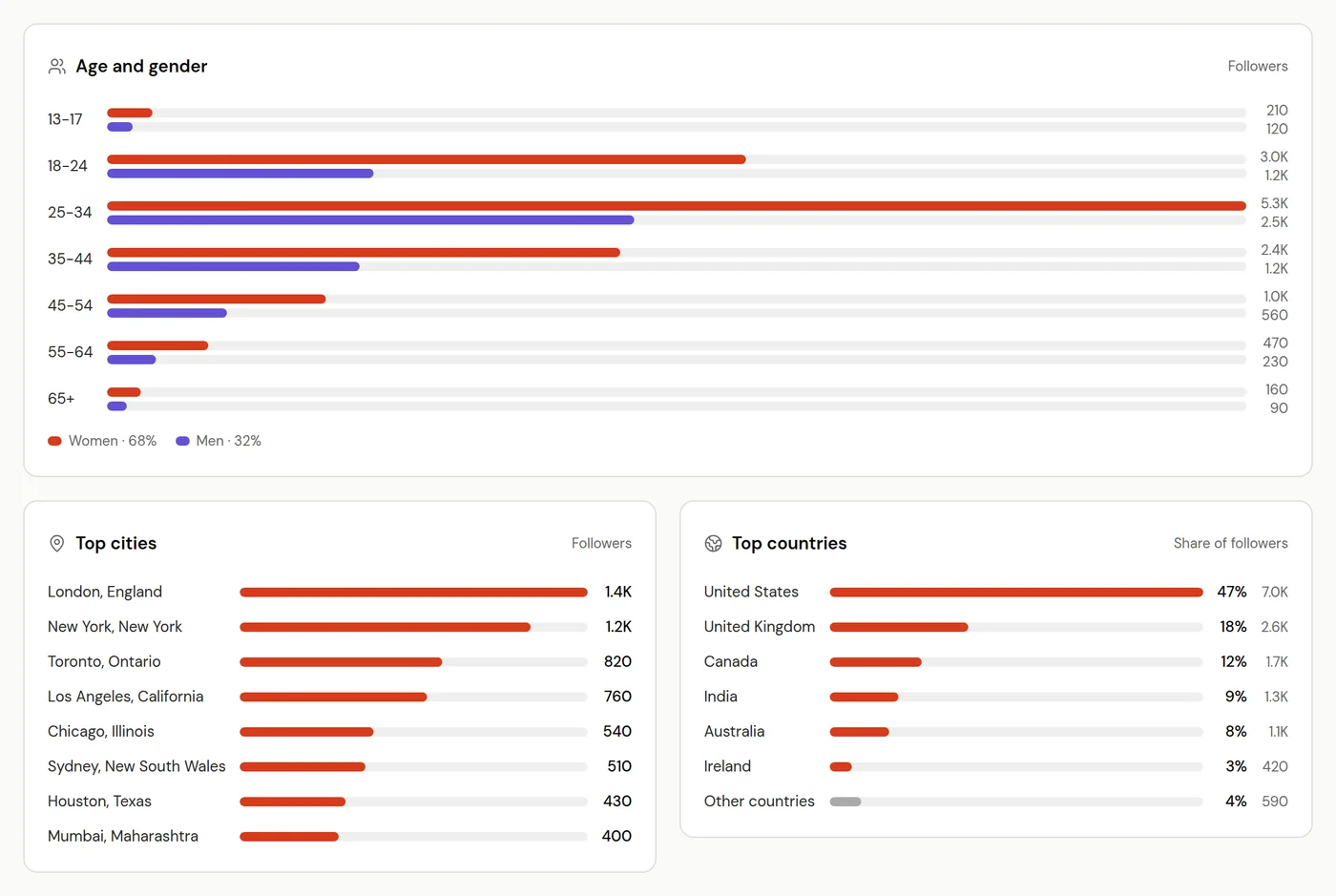
Instagram's figures for your followers this month. Step 6: Download the media kit (Creator)
Open Media kit. Pick a market and a niche to see Suggested collab rates. Under Media kit PDF, choose a theme and fill in Short bio, Audience line, Contact email for brands and Brands you've worked with if you want them on the page; Write it for me drafts the bio.
Click Download media kit PDF. The preview beside the form is the PDF itself, and the rates are never in it. On Starter and Influencer the tab shows Upgrade to Creator instead.
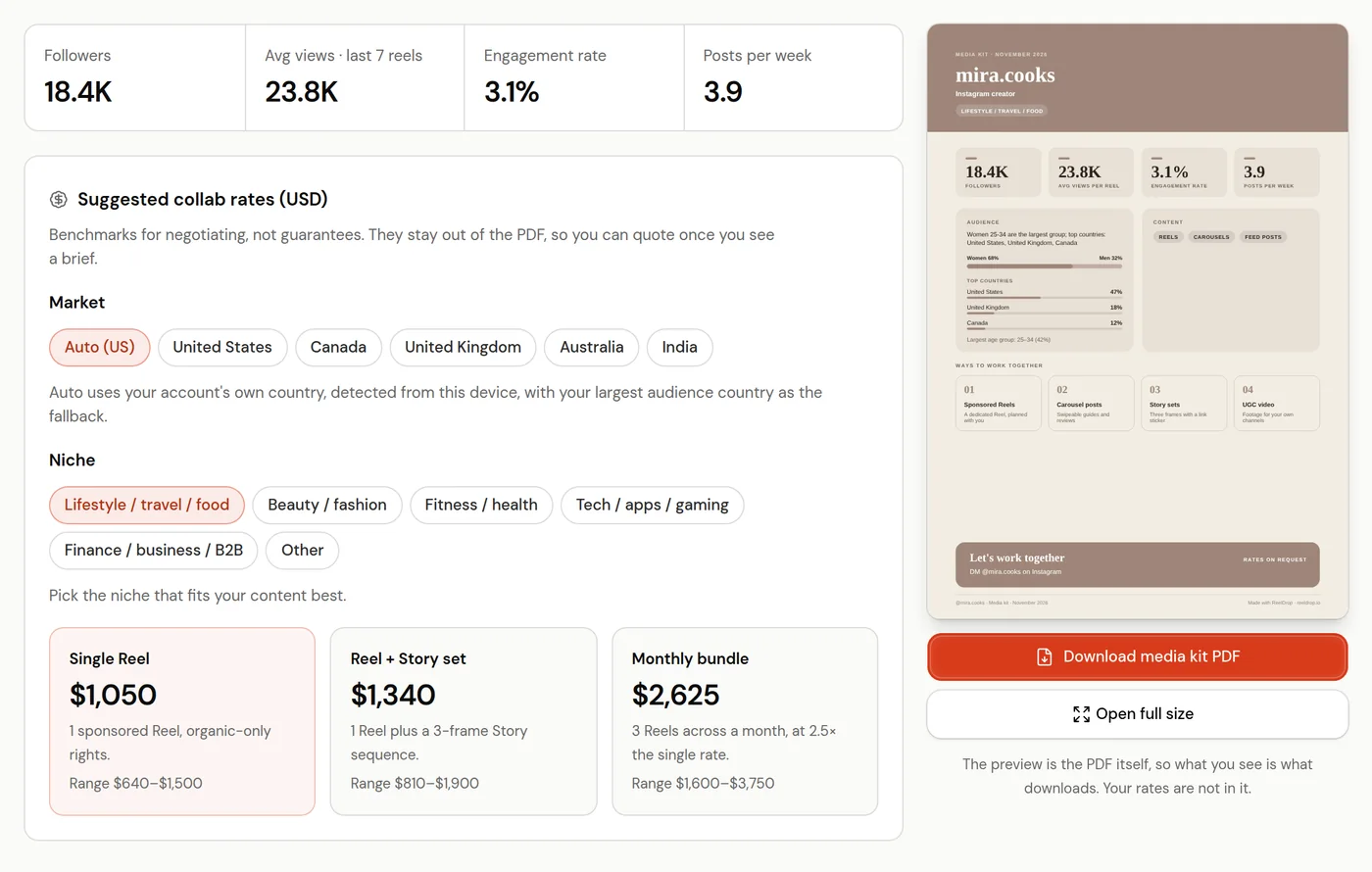
The preview is the PDF that downloads. Step 7: Choose which analytics emails you get
Open Settings, then Notifications. The weekly stats switch is the Monday digest, monthly stats is the one on the 1st, plan reminders are the nudges when a slot in your plan is empty, and milestones are the follower and views cards.
Every digest also has an Unsubscribe link at the bottom, which stops that kind of email and nothing else.
How often the numbers update
There is no sync button to press. Each source updates on its own schedule:
- Post and account insights: fetched when you open Analytics and kept for 15 minutes. An older copy shows while a fresh one loads.
- Posts you publish from the Instagram app: picked up about once an hour.
- Stories: saved every three hours while they are live. Stories that expired before you connected cannot be recovered.
- Trial reels: sampled every few minutes for the first 6 hours, hourly until 48 hours, then every 6 hours, for 7 days.
- Online followers: refreshed every 6 hours, averaged over the last 30 days.
- Content plan verdicts: rebuilt every 6 hours, or when you click Refresh.
Why a number might be missing
Instagram reports a post's reach once it has some, usually within a day of publishing; until then the post sits out of the rankings. Story replies read 0 for viewers in Europe and Japan, because Instagram reports them that way. Engaged audience needs 100 engagements in the period and can lag by up to 48 hours. And account insights stop at 90 days back.
Digests and milestone emails
The weekly digest goes out on Monday and the monthly one on the 1st, both at 9 am in the timezone set in Settings (UTC if none is set), and only when there was something to report: a post published or failed, or some reach. They go to the workspace owner. Milestone emails go out between 9 am and 9 pm the same way, at most one a day.
Frequently asked questions
Is analytics on the free plan?
Yes. Every tab except Media kit, plus story analytics, the weekly recap and the email digests, is on every plan. The media kit is on Creator.
Why does the media kit show a different engagement rate?
The media kit uses the formula brands use, likes and comments divided by followers. The rest of Analytics divides likes, comments, saves and shares by reach.
Can I export my analytics?
The media kit downloads as a PDF on Creator. The other tabs have no export, but the analytics tools in the ReelDrop MCP server return the same data to Claude or ChatGPT, which can turn it into a table.
Do posts I made before joining ReelDrop show up?
Recent ones do. ReelDrop imports posts from your Instagram account when it first checks it and then picks up new ones about once an hour, marked IG in the Posts list.
Related
Something here out of date or missing a step? Tell us and we will fix it.
Stop managing Instagram. Start growing with it.
Sign up free for AI carousels, DM automation, captions, and scheduling: built for creators who post less and grow more.
Built in Toronto by Piyush Sachdeva.